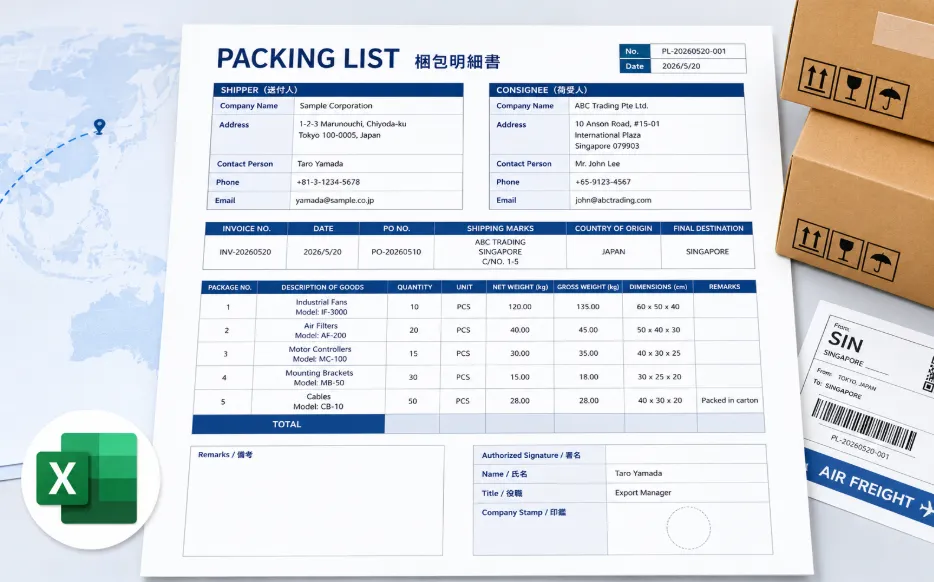
Download a free Japanese packing list template for Excel. It is designed for overseas companies that ship goods to or from Japan and need a document that can be checked easily by both English-speaking staff and Japanese business partners.
This template includes shipper and consignee information, invoice and purchase order numbers, shipping marks, country of origin, destination, package details, weight, dimensions, remarks, and an authorized signature section.
The main labels are written in English, with Japanese added to several important fields. It keeps the document practical without making every cell crowded with two languages.
Free Japanese Packing List Template
Japanese Packing List Template 01
Bilingual Excel packing list for international shipments

This is a Japanese-style packing list for goods shipped internationally. It has separate sections for the shipper and consignee, followed by shipment references and a detailed package table.
The package table includes package number, description of goods, quantity, unit, net weight, gross weight, dimensions, and remarks. There is also space for an authorized signature, the person’s name and title, and a company stamp.
What Is a Packing List?
A packing list is a document that shows what is packed in a shipment. It is commonly used for international trade, export procedures, warehouse checks, customs clearance, and delivery confirmation.
Unlike an invoice, a packing list mainly describes the physical contents of the shipment. It usually shows the number of packages, product descriptions, quantities, weights, and package dimensions.
For example, an invoice may show the selling price of ten industrial fans. The packing list shows how those fans are packed, how much the packages weigh, and how large they are.
In practice, the two documents are often prepared together. I found it easier to complete the invoice first, then copy the invoice number, item names, and quantities into the packing list. Starting both files separately tends to create small differences.
Information Included in This Template
The template contains the following sections:
- Packing list number
- Issue date
- Shipper information
- Consignee information
- Invoice number
- Invoice date
- Purchase order number
- Shipping marks
- Country of origin
- Final destination
- Package number
- Description of goods
- Quantity and unit
- Net weight
- Gross weight
- Package dimensions
- Remarks
- Authorized signature
- Name and job title
- Company stamp
It is a fairly complete format, but it still fits on one page when the number of items is small. That matters more than it sounds. Packing lists are often printed in a warehouse or checked beside boxes, where a compact page is easier to handle than a long document.
Template Layout and Features
Separate Shipper and Consignee Sections
The top of the template has two large information boxes.
Shipper is the company or person sending the goods. Consignee is the company or person receiving them.
Each section includes:
- Company name
- Address
- Contact person
- Phone number
- Email address
The address area is larger than the other rows, so multi-line Japanese and overseas addresses can be entered without squeezing everything into one line.
Shipment Reference Information
Below the company information, the template includes a row for shipment references:
- Invoice No.
- Date
- PO No.
- Shipping Marks
- Country of Origin
- Final Destination
This row is useful when several documents are exchanged for the same transaction. The invoice number and purchase order number help the receiving company match the packing list with the correct order.
A common mistake is entering a different invoice number on the packing list. It may be only one missing digit, but accounting staff or customs agents can stop the process to confirm it. Copying the number directly from the final invoice is safer.
Detailed Package Table
The main table is arranged around the physical shipment rather than the price.
| Field | What to enter |
|---|---|
| Package No. | A number used to identify each carton, crate, pallet, or other package |
| Description of Goods | Product name, model number, part number, or another clear description |
| Quantity | The number of items contained in the package |
| Unit | PCS, SET, BOX, CTN, KG, or another suitable unit |
| Net Weight | The weight of the goods without the packaging |
| Gross Weight | The total weight including cartons, pallets, and packing materials |
| Dimensions | The outside dimensions of the package |
| Remarks | Additional packing or handling information |
The bottom row can be used for totals. For shipments with several packages, check that the total number of packages and total weight match the shipping documents.
Signature and Company Stamp Area
The lower-right section includes fields for:
- Authorized Signature / 署名
- Name / 氏名
- Title / 役職
- Company Stamp / 印鑑
A company stamp is not always required for an international packing list. Still, some Japanese companies prefer a stamp or signature because it makes the document look formally issued rather than unfinished.
Before sending the file, it is worth asking the freight forwarder, customer, or customs agent whether a signature or stamp is needed. Requirements can differ by shipment and destination.
How to Complete the Packing List
- Download and open the Excel file.
- Enter the packing list number and issue date.
- Fill in the shipper’s company and contact information.
- Enter the consignee’s official company name and address.
- Copy the invoice number, invoice date, and purchase order number from the related documents.
- Enter the shipping marks, country of origin, and final destination.
- List each package separately in the package table.
- Enter the contents, quantity, weight, and dimensions.
- Calculate and enter the totals.
- Add remarks when special handling or packing information is needed.
- Complete the signature section if required.
- Export the completed packing list as a PDF before sending it.
When entering package dimensions, use one unit consistently. For example, do not mix centimeters and millimeters in the same table. Adding “cm” to the heading or each value can prevent confusion.
Net Weight and Gross Weight
Net weight and gross weight are easy to mix up, especially for staff preparing export documents for the first time.
| Weight type | Meaning |
|---|---|
| Net Weight | The weight of the goods only, without cartons, pallets, cushioning, or other packing materials |
| Gross Weight | The total shipping weight, including the goods and all packaging materials |
Gross weight should normally be equal to or greater than net weight. If it is lower, the values have probably been entered in the wrong columns.
This sounds obvious, but it is one of those mistakes that slips through when several cartons are being measured late in the day. A quick check of “gross weight minus net weight” helps catch it.
How to Write Package Dimensions
Package dimensions are usually written as:
Length × Width × Height
Examples:
- 60 × 50 × 40 cm
- 120 × 80 × 95 cm
- 45 × 35 × 30 cm
Use the outside dimensions of the carton, crate, or pallet rather than the dimensions of the product itself.
If the shipment contains packages of different sizes, enter the dimensions for each package separately. Writing only one average size can cause problems when the freight company calculates volume or arranges cargo space.
What Are Shipping Marks?
Shipping marks are letters, numbers, symbols, or short descriptions printed or attached to packages. They help warehouses, carriers, customs agents, and recipients identify the shipment.
A shipping mark may include:
- Consignee or company name
- Destination
- Purchase order number
- Package number
- Country of origin
For example:
| ABC TRADING SINGAPORE C/NO. 1-5 MADE IN JAPAN |
“C/NO. 1-5” means carton numbers 1 through 5.
The shipping marks on the packing list should match the marks attached to the actual packages. This is particularly important when several similar cartons are stored together.
Japanese Business Customs to Keep in Mind
Japanese business documents are often checked by more than one person. An export staff member may prepare the packing list, a manager may approve it, and a freight forwarder may compare it with the invoice and shipping instructions.
Because of this, consistency is usually more important than decorative design.
Use the same company names, item descriptions, model numbers, quantities, and reference numbers across the invoice, purchase order, delivery note, and packing list.
Official company names should also be written carefully. A Japanese customer may use a legal company name that is slightly different from the brand name shown on its website. When possible, copy the company name from the purchase order or customer registration information.
The company stamp field is included because stamps are still familiar in Japanese office procedures. It can be left blank when the receiving party does not require one.
Packing List and Commercial Invoice: What Is the Difference?
| Document | Main information | Main purpose |
|---|---|---|
| Packing List | Packages, quantities, weight, dimensions, and packing details | To describe the physical contents of the shipment |
| Commercial Invoice | Seller, buyer, item prices, currency, and total value | To show the commercial value and billing details |
A packing list usually does not need unit prices or payment totals. Those details belong on the commercial invoice.
There can be exceptions depending on the carrier or destination, but keeping the packing list focused on physical shipping information makes it easier to read.
Typical Document Flow for an Export Shipment
Typical document flow
Step 1
›
Step 2
›
Step 3
›
Step 4
›
Step 5
The exact order depends on the company and shipping method. In a small office, the invoice and packing list may be prepared at almost the same time.
One practical approach is to keep both files in the same transaction folder and include the invoice or purchase order number in the filename. It makes later checks much easier, especially when the customer asks about a shipment several months later.
Recommended Units and Abbreviations
| Abbreviation | Meaning | Example |
|---|---|---|
| PCS | Pieces | 10 PCS |
| SET | Sets | 3 SET |
| CTN | Cartons | 5 CTN |
| BOX | Boxes | 12 BOX |
| KG | Kilograms | 125 KG |
| CM | Centimeters | 60 × 50 × 40 CM |
Use abbreviations consistently. For example, avoid writing “PCS” in one row and “pieces” in another unless there is a reason to distinguish them.
Common Mistakes to Avoid
- Using an invoice number that does not match the commercial invoice
- Entering a shortened or unofficial consignee name
- Leaving the country of origin blank
- Mixing centimeters and millimeters in the dimensions column
- Entering product weight as gross weight
- Making gross weight lower than net weight
- Using vague descriptions such as “parts” or “equipment”
- Forgetting model numbers or part numbers
- Showing package numbers that do not match the labels on the cartons
- Sending the Excel file without checking the print area
The print area is worth checking. Excel may look fine on screen but split the signature section onto a second page when exported. Open the print preview once before creating the PDF.
Another frequent problem is the description of goods. “Motor parts” may be understandable internally, but “Motor Controllers, Model MC-100” is much easier for the consignee and customs staff to identify.
FAQ
Can this template be used for exports from Japan?
Yes. The template includes fields commonly needed for international shipments, including shipper, consignee, shipping marks, country of origin, destination, weight, and dimensions.
Can I use it for imports into Japan?
Yes. Replace the sample information with the overseas shipper and Japanese consignee details. Check the required information with your customs agent or freight forwarder.
Does a packing list need prices?
Usually, no. Prices and transaction values are normally shown on the commercial invoice. The packing list focuses on the physical contents of the shipment.
Should the packing list be signed?
It depends on the destination, customer, carrier, and customs requirements. The template includes an authorized signature section so it can be completed when needed.
Is a Japanese company stamp required?
Not always. Some Japanese companies use a stamp as part of their internal procedure, while others accept an electronic signature or an unstamped PDF.
What should I enter for the country of origin?
Enter the country where the goods were manufactured or produced. Do not automatically enter the shipping country if the products were made somewhere else.
Can several products be listed in one package?
Yes. You can list several items in the description field or use separate rows. For customs checks, separate rows are usually clearer when the products have different names, quantities, or origins.
Can I add more rows to the Excel template?
Yes. Copy an existing item row and insert it above the total row. After adding rows, check the borders, formulas, print area, and page breaks.
Should I send the Excel file or a PDF?
Edit the document in Excel, then send it as a PDF unless the recipient specifically requests the original Excel file. A PDF is less likely to change when opened on another computer.
Related Resources
These templates may also be useful when preparing documents for a transaction with a Japanese company.
- Japanese Business Document Templates
- Japanese Purchase Order Template
- Japanese Quotation Template
- Japanese Invoice Template
- Japanese Delivery Note Template
Summary
This Japanese packing list template is suitable for companies preparing international shipments to or from Japan.
It includes separate shipper and consignee sections, invoice and purchase order references, shipping marks, country of origin, final destination, package numbers, quantities, net and gross weights, dimensions, remarks, and an authorized signature area.
The main thing is not to make the form look perfect. It is to make the packing list match the actual cartons and the related invoice. Check the reference numbers, package numbers, weights, and dimensions once more before sending it. Those four areas cause most of the ordinary back-and-forth.